
It’s easy to install a plugin for every small requirement — a form here, a popup there — until the dashboard feels sluggish and nobody remembers why half these tools are active. Learning how to choose a WordPress plugin isn’t really about counting installs; it’s about evaluating value, scope, loading behavior, maintenance, and how easily you could remove it later.
This isn’t another “install fewer plugins” lecture. It’s a practical framework you can apply to any plugin — ThemeAtelier’s own products included — before you install or buy it.
How to Choose a WordPress Plugin: The 7-Point Framework Check whether it solves a defined problem, whether its features overlap with tools you already run, where it loads scripts and styles, its database and external-service behavior, its maintenance and support quality, and how easily it can be removed. Measure performance before and after installing rather than assuming it.
Editorial disclosure: ThemeAtelier develops several focused WordPress plugins, including Darkify, ChatHelp, Eventful, and GreetPlayer. This guide is a general evaluation framework, not a product pitch — apply the same checklist to any plugin, ours included. Last reviewed: July 2026.
Key Takeaways
- Plugin count isn’t the main performance metric. A site with 30 narrow, well-built plugins can outperform one with five poorly built ones.
- Every plugin should solve a clearly defined need. If you can’t state the problem in one sentence, you’re not ready to compare options.
- Feature overlap is the most common source of bloat — two SEO plugins or two caching plugins fighting each other, not one plugin being “too big.”
- Scripts and styles should load only where the feature is used, not site-wide by default — check this in your browser’s network tab.
- Maintenance and support matter as much as features. A well-supported plugin with fewer features often costs less long-term than an unmaintained one.
- Test performance before and after installing — impressions aren’t evidence, and “feels slower” needs a baseline to mean anything.
- A plugin needs a reasonable removal path. If you can’t tell what happens when you deactivate it, that’s a decision to make before installing, not after.
Table of Contents
What Does “The Right Plugin” Actually Mean?
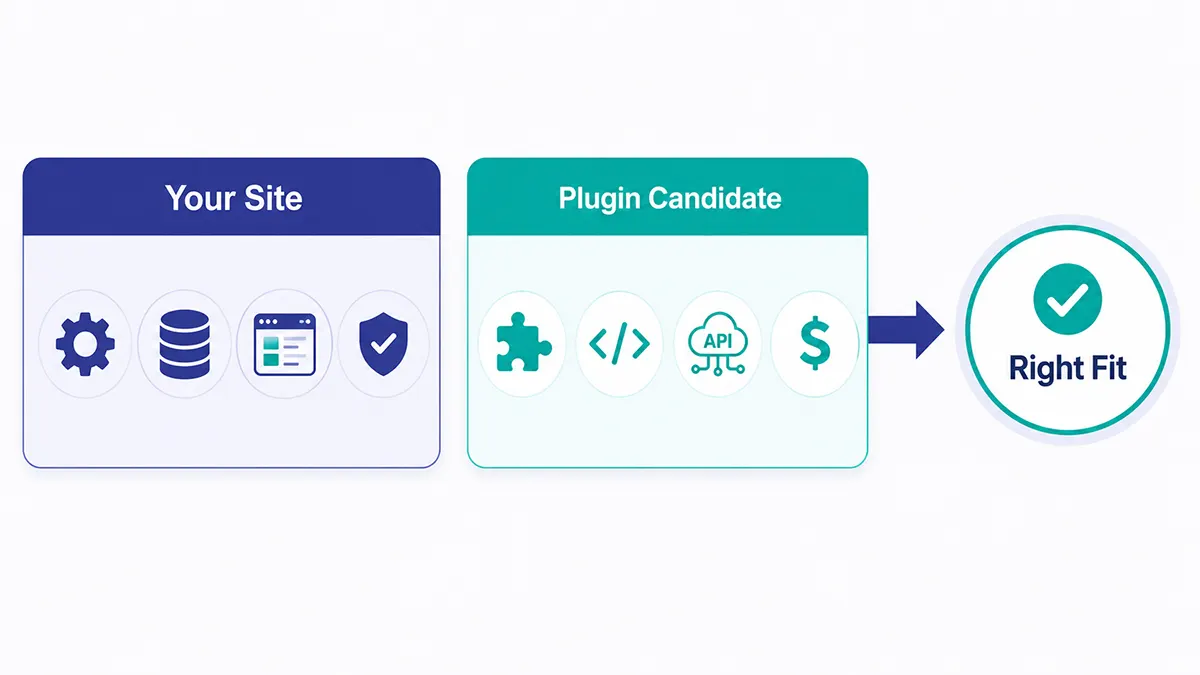
Most guides to how to choose wordpress plugin options focus on feature lists, but the right plugin isn’t automatically the most popular, the most feature-rich, the cheapest, the most expensive, or the one marketed as “all-in-one.” It’s the one that solves your actual problem, fits your current workflow, performs acceptably in your environment, receives responsible maintenance, has clear documentation, fits your budget, avoids unnecessary overlap with tools you already run, and can be replaced without unreasonable difficulty.
How Many WordPress Plugins Are Too Many?
There’s no universal number, and any answer that gives you one is guessing. A site running many narrowly focused plugins that load conditionally can perform better than a site running five plugins that each run heavy database queries and external requests on every page. A WooCommerce store with legitimate operational needs will always carry more plugins than a brochure site — that’s not automatically a problem.
The practical question is what work the plugins make WordPress, the browser, the database, and external services actually perform. Inactive plugins don’t normally run front-end logic, but they still carry maintenance and security exposure, so remove ones you no longer need. Check active plugins for front-end asset loading, admin-only impact, scheduled tasks, database growth, and outbound API calls — that combination tells you more than a plugin count ever will.
Start With the Problem, Not the Plugin
Write down the exact problem, decide who experiences it, and define the minimum acceptable solution before you open the plugin directory. Check whether WordPress, your theme, or your host already covers it, then check whether an existing plugin already does. Only then compare candidates on the features you’ll actually use.
Example: a business wants customers to ask quick pre-sale questions. The requirement isn’t automatically “install live chat” — it could be a contact form, WhatsApp click-to-chat, Messenger, email, a knowledge base, or full live chat with a support team. The right answer follows the workflow and audience, not the category label.
Practical Checklist Before Installing a Plugin
Work through these groups before installing or buying anything.
- Purpose and features: What exact problem does it solve? Which features will you use immediately versus “nice to have”? Does another installed plugin already do this? Can optional modules be disabled?
- Front-end assets: Does it add JavaScript or CSS site-wide or only where needed? Does it add external fonts or icon libraries? Check your browser’s network tab and page source to see what actually loads.
- Database behavior: Does it create custom tables, large logs, or many autoloaded options? Custom tables aren’t inherently bad for structured or high-volume data — but check whether logs can be limited and whether uninstall cleans up after itself.
- Third-party connections: Does it call an external API or require an account? What happens if that service goes down? Does the site still function without it, and does the integration create privacy obligations worth reviewing?
- Maintenance: When was it last updated, and does the changelog show real maintenance? Frequent updates aren’t automatically good, and infrequent updates aren’t automatically abandonment — consider the plugin’s complexity.
- Support: Are questions answered specifically, or with generic replies? Is documentation current? Don’t assume premium support includes customization unless it’s clearly stated.
- Reviews: Recent reviews matter more than the star average. Look for recurring complaints, developer responses, and whether negative reviews concern the current version. Fewer reviews isn’t automatically a red flag.
- Cost and licensing: Yearly or lifetime? What happens after expiration? Are updates and support included? How many sites, and do staging sites count? Is there a refund policy, and do you actually need the paid tier?
How to Test a Plugin Before Committing
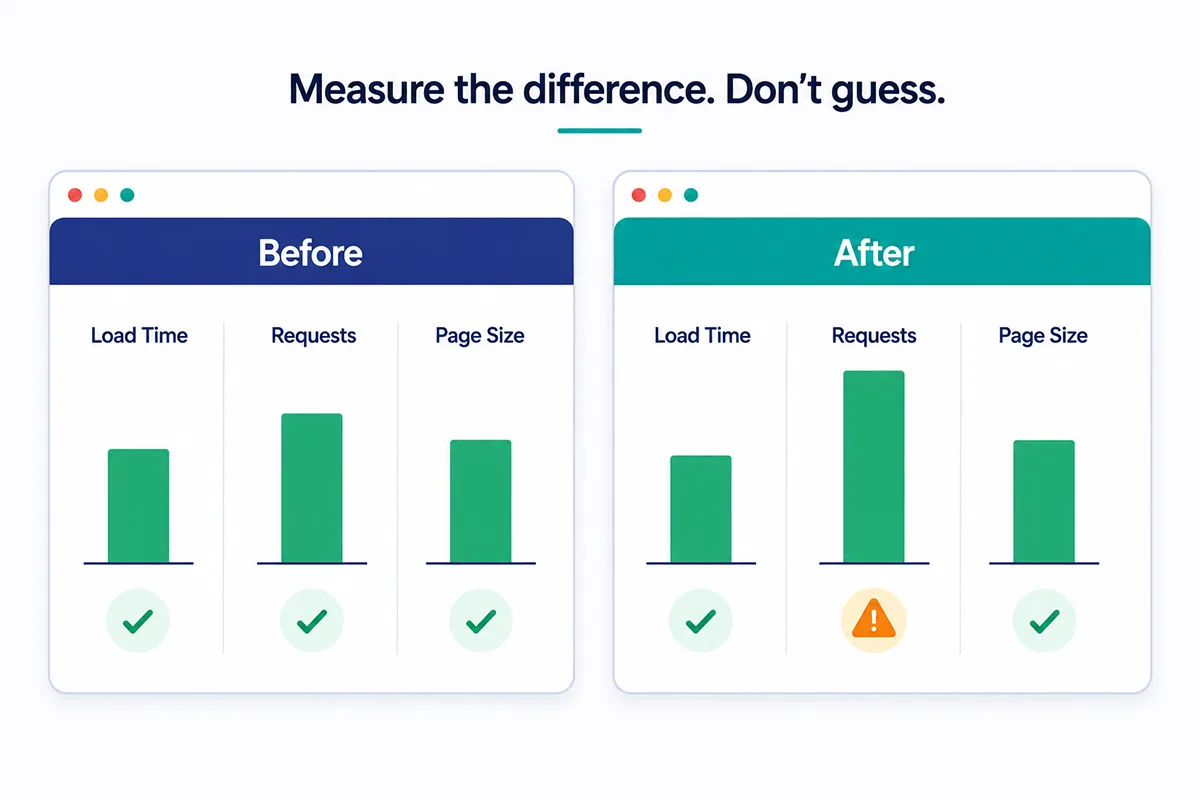
Before installing, record a baseline: page-load measurements, Core Web Vitals where available via PageSpeed Insights, request counts, transferred page size, and dashboard responsiveness. Results vary between runs, so compare under similar conditions rather than a single test.
Back up the site, then install the candidate plugin on a staging copy, configure only the features you’ll use, clear caches, and test representative pages logged in and out, on mobile, and through checkout or forms where relevant. Compare for new requests, new external domains, query increases, slow admin pages, new background jobs, and visual or JavaScript conflicts.
Before committing, test removal: does deactivating it leave orphaned shortcodes, disappearing blocks, or leftover database tables? Confirm whether settings export and whether uninstall cleanup is documented. Never experiment with any of this on a production site without a backup.
Performance Impact: Front End vs. Admin vs. Background
Plugin performance isn’t one measurement. Front-end impact covers scripts, styles, fonts, third-party requests, and layout shifts visitors experience directly. Admin impact covers slow settings pages, dashboard widgets, promotional notices, and editor integrations only you see. Server and database impact covers queries, scheduled tasks, API syncing, and log storage running in the background. Business-workflow impact covers the maintenance time, staff training, and troubleshooting a plugin adds regardless of load time. A plugin can look invisible on the front end and still create significant admin or server work.
Common Symptoms of Plugin Bloat
Watch for a slow dashboard or editor, too many admin menu items, persistent promotional notices, scripts loading on unrelated pages, several plugins loading the same library, repeated external API calls, rapidly growing database tables, long scheduled-action queues, conflicting CSS, competing floating widgets, settings screens full of unused modules, and orphaned shortcodes after deactivation. One symptom alone doesn’t prove a specific plugin is badly built — proper diagnosis still matters.
How to Audit an Existing Plugin Stack
- Inventory: list every plugin with its purpose, owner, free/paid status, renewal date, external service, and data stored.
- Find overlap: check for duplicate SEO, caching, image-optimization, security, forms, or spam-protection tools.
- Find unused features: active plugins tied to a completed migration, an expired account, or a feature nobody uses anymore.
- Measure high-impact pages: homepage, product or checkout pages, a blog post, and any logged-in dashboard view.
- Disable carefully: back up, test on staging, disable one plugin at a time, clear caches, and retest before removing anything permanently.
- Document the decision: why it stays, who maintains it, what would replace it, and when to review it again.
All-in-One Plugin vs. Single-Purpose Plugin
All-in-one suites mean fewer vendors, one interface, and often one support relationship, but they also carry more unused functionality, a steeper learning curve, and harder replacement — one failure can affect several workflows at once. Single-purpose plugins are easier to evaluate and replace individually, but mean more vendors, more renewal dates, and more integration testing between tools. Neither philosophy is universally superior; the right choice depends on required features, implementation quality, total maintenance, and how your team actually works.
What “Lightweight WordPress Plugin” Should Actually Mean
“Lightweight” is often a marketing word rather than a measurement. A meaningful evaluation asks whether the plugin loads assets conditionally, lets you disable unused modules, avoids unnecessary external dependencies, runs reasonable database queries, and cleans up temporary data. A small ZIP file isn’t proof of good runtime performance, a large plugin can still be efficient, and a plugin with zero front-end assets can still run heavy background processing. Judge it in the environment where it will actually run.
Security, Privacy, and Long-Term Risk
Evaluation isn’t only about speed. Check update history and how known vulnerabilities were handled, what data the plugin collects and where it’s processed, whether export and deletion tools exist, and whether the plugin has changed ownership recently — ownership changes sometimes precede a drop in maintenance quality. Review current official documentation and the privacy requirements that apply in your jurisdiction; this isn’t legal advice.
Free vs. Premium Plugins
Free versus premium isn’t a direct quality comparison. Free fits simple requirements with an actively maintained plugin and sufficient documentation. Premium earns its cost when the feature supports revenue, reliable support matters, multiple sites are involved, or integrations save real setup time. Compare the actual features you need, support quality, renewal terms, site limits, refund policy, and migration options — premium code isn’t automatically faster, safer, or better maintained.
ThemeAtelier’s Single-Purpose Approach
ThemeAtelier’s products are each built around one defined problem rather than one oversized suite: Darkify adds an optional dark-mode experience, ChatHelp adds WhatsApp click-to-chat, Eventful improves the display of events created through The Events Calendar, GreetPlayer adds a floating video welcome, and Domain For Sale supports domain-for-sale landing pages and buyer inquiries.
That doesn’t mean these plugins have zero performance impact, load no assets, or are automatically the lightest option in their category — they still load code, and some features may require the Pro version. ThemeAtelier generally favors focused tools designed around a defined use case, often with conditional display and page-level targeting where documented. Buyers should still evaluate each one using the same checklist described in this guide, not assume it passes automatically.
Plugin Evaluation Scorecard
| Evaluation area | Question to ask | Acceptable evidence | Warning sign |
|---|---|---|---|
| Problem fit | Does it solve a defined need? | Clear one-sentence use case | Vague, broad purpose |
| Feature overlap | Do you already have this? | No duplicate active tool | Two plugins doing the same job |
| Front-end assets | Where do scripts load? | Loads only where used | Loads site-wide by default |
| Database behavior | What does it store? | Reasonable, cleanable data | Unbounded logs, no cleanup |
| External services | What does it depend on? | Documented, optional dependency | Undocumented external requests |
| Maintenance | When was it last updated? | Recent, explained changelog | Long gap with no explanation |
| Support | Are questions answered well? | Specific, current answers | Generic or ignored questions |
| Reviews | What do recent reviews say? | Resolved, version-specific issues | Recurring unresolved complaints |
| Removal | What happens if you remove it? | Documented uninstall behavior | No migration or cleanup info |
| Pricing | What’s included and for how long? | Clear renewal and refund terms | Hard-to-find pricing |
Red Flags Before Installing or Buying
Be cautious of an unclear product purpose, no recent maintenance without explanation, documentation that doesn’t match the current interface, many unresolved reports of the same issue, global asset loading for a narrow feature, undocumented external requests, no migration or uninstall information, hard-to-find pricing, aggressive dashboard advertising, guaranteed-performance claims, and nulled or unofficial copies. No single flag automatically makes a plugin unsafe — but several together are worth taking seriously.
Final Decision Framework
- Define the problem and list required features
- Check what WordPress, your theme, or host already covers
- Shortlist two or three candidate plugins
- Review maintenance, support, and reviews
- Check loading behavior and data behavior
- Test on staging and compare before-and-after measurements
- Test removal before committing
- Choose the smallest suitable solution, not the smallest file
- Document the decision and review it periodically
Final Recommendation
Plugin count was never the real issue — unused features, loading behavior, database growth, weak maintenance, and unclear removal paths are. The best plugin solves a clear need at an acceptable operational cost, and that cost has to be measured, not assumed. Reassess your stack as your website changes, not just when it starts feeling slow.
Use this checklist when comparing any WordPress product. You can also browse the ThemeAtelier plugin catalog and evaluate each focused tool against the same requirements before deciding whether it belongs on your website.
FAQ — How to Choose a WordPress Plugin
How do I choose the right WordPress plugin?
Define the exact problem first, then check whether it overlaps with a tool you already have. Review where the plugin loads assets, its database and external-service behavior, its maintenance and support quality, and how easily you could remove it. Test performance before and after installing rather than relying on impressions.
How many plugins are too many for a WordPress website?
There’s no universal number. A site with many narrow, well-built plugins that load conditionally can outperform one with far fewer poorly built ones. What matters is the actual work each plugin makes WordPress, the browser, and the database perform — not the count in your plugins list.
Do more plugins always make WordPress slower?
No. Implementation and workload matter more than plugin count alone. A single poorly built plugin running heavy database queries on every page can slow a site more than a dozen small, well-coded ones that load only where needed. Test each plugin’s actual impact rather than assuming more equals slower.
What is plugin bloat?
Plugin bloat covers several distinct problems: unused features, scripts and styles loading where they’re not needed, excessive database tables or logs, slow admin dashboards, unnecessary external API dependence, and workflows made harder than they need to be. A feature-rich plugin isn’t automatically bloated if you actually use those features.
How can I tell whether a WordPress plugin is lightweight?
Check whether it loads assets conditionally, lets you disable unused modules, avoids unnecessary external dependencies, and runs reasonable database queries. A small download file isn’t proof of good runtime performance — judge the plugin in the actual environment and workflow where it will run.
How do I test a plugin’s performance impact?
Record a baseline using tools like PageSpeed Insights and your browser’s network tab before installing. Then install on staging, configure only the features you’ll use, and compare requests, page size, database queries, and admin responsiveness against that baseline under similar test conditions.
Should I delete inactive WordPress plugins?
Generally, yes, once you’re sure you no longer need them. Inactive plugins don’t typically run front-end logic, but they still carry maintenance and security exposure, since outdated code sitting on your server can still be a target. Remove ones with no defined future use rather than leaving them “just in case.”
Are all-in-one plugins slower than single-purpose plugins?
Not necessarily. All-in-one suites can carry more unused functionality and a harder replacement path, but a well-built suite can still outperform several poorly built single-purpose plugins. The right choice depends on required features, implementation quality, and how much of the suite you’ll actually configure and use.
Do premium plugins perform better than free plugins?
Not automatically. Premium code isn’t inherently faster, safer, or better maintained than free code. A well-maintained free plugin can outperform a poorly built premium one. Evaluate maintenance history, support quality, and actual measured performance rather than assuming price reflects engineering quality.
What should I check before buying a WordPress plugin?
Check the exact problem it solves, whether it overlaps with existing tools, its asset-loading and database behavior, maintenance and changelog history, support quality, recent reviews, and licensing terms including renewal, refund policy, and site limits. Test it on staging before relying on it in production.