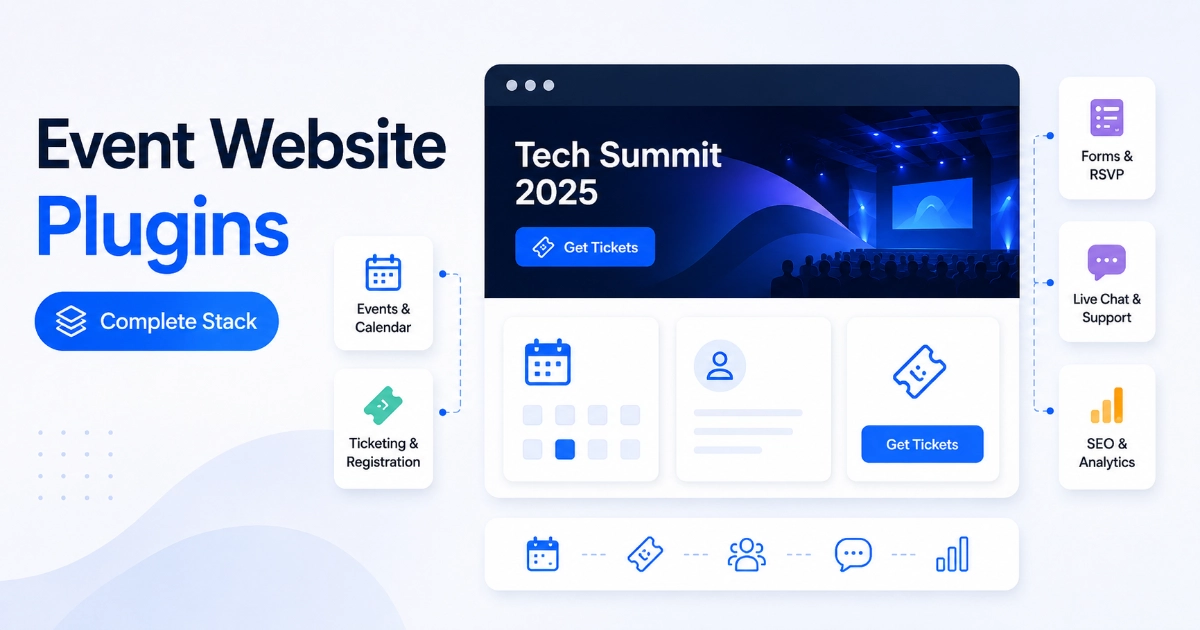

An event website juggles more moving parts than a typical business site: schedules, ticket availability, venue directions, sponsor questions, and last-minute changes that can’t wait until Monday. Choosing the right WordPress plugins for event websites means building a focused stack around that reality, not installing whatever shows up in a “best plugins” search.
This guide covers the complete stack an event site actually needs — core event management, ticketing, attendee communication, promotion, and reliability — including where Eventful, ChatHelp, and Greet Bubble fit alongside independent tools.
Which WordPress plugins does an event website need? Most event websites need a reliable event-management or calendar plugin, a clear event-display layer, registration or ticketing, attendee communication, SEO, analytics, performance, and backups. Eventful, ChatHelp, and Greet Bubble address event presentation, attendee questions, and visitor onboarding, while other tools handle ticketing and site operations.
Editorial disclosure: ThemeAtelier develops Eventful, ChatHelp, and Greet Bubble. This guide also covers independent tools and foundational plugin categories so you can assemble a practical event-site stack either way.
Table of Contents
Key Takeaways
- The foundation is a core event-management plugin plus a registration or ticketing tool — everything else builds on that data.
- Eventful is an add-on for The Events Calendar, not a replacement — it improves how existing event data is displayed and browsed.
- ChatHelp fits events where attendees already ask small, purchase-blocking questions through WhatsApp, like parking or accessibility.
- Greet Bubble fits events with a genuine host, venue, or speaker story worth introducing on video — not every listing needs one.
- Ticketing and communication are separate workflows: publishing an event, accepting an RSVP, selling a ticket, and answering a question all need different tools.
- Event sites need stronger mobile and last-minute planning than ordinary business sites, since attendees check schedules and directions from their phones on the day itself.
- Not every plugin here is mandatory — add each one only when it solves a defined problem for your specific event.
Why Event Websites Need a Different Plugin Stack
A standard business site might only need pages and a contact form. An event website has to support a full attendee journey: multiple or recurring dates, ticket availability that changes in real time, venue maps and accessibility details, speaker or sponsor information, registration deadlines, and schedule changes that need to reach attendees fast. That’s exactly why the wordpress plugins for events website builders choose look different from a standard business-site toolkit. Mobile use spikes before and during the event itself, so the stack has to hold up under that pressure.
The Complete Event Website Stack at a Glance
| Event-site need | Recommended plugin or category | Priority | Main purpose | Key consideration |
|---|---|---|---|---|
| Core event management | The Events Calendar | Essential | Stores dates, venues, organizers | Recurring events need Pro add-on |
| Event layouts and filters | Eventful | Usually recommended | Improves display and discovery | Requires The Events Calendar |
| Registration or RSVPs | Event Tickets | Essential for ticketed events | Collects attendee sign-ups | Free version supports real payments |
| Ticket sales | Event Tickets / Plus | Use-case dependent | Sells paid tickets | WooCommerce needs the paid add-on |
| Payments | Stripe, PayPal, Paystack | Essential for paid events | Processes ticket payments | Included free via Tickets Commerce |
| Contact forms | Form plugin | Essential | Speaker/sponsor/vendor inquiries | Test delivery regularly |
| WhatsApp communication | ChatHelp | Optional | Fast attendee Q&A | Not a ticketing or help-desk system |
| Video welcome | Greet Bubble | Optional | Introduces host, venue, or speaker | Needs a genuinely useful video |
| Email reminders | Email/CRM tool | Usually recommended | Confirmations, updates, follow-up | Check if ticketing tool already sends these |
| SEO | SEO plugin | Essential | Titles, schema, indexing | Doesn’t guarantee rankings |
| Analytics | Analytics tool | Essential | Measures traffic and conversions | Informs decisions, doesn’t improve them |
| Performance | Caching plugin | Usually recommended | Keeps event pages fast | Exclude dynamic checkout pages |
| Security | Security plugin | Essential | Login and malware protection | Host may already cover this |
| Backups | Backup plugin | Essential | Off-site, restorable copies | Increase frequency during ticket sales |
| Spam protection | Anti-spam tool | Usually recommended | Filters form and comment spam | One tool is enough |
Start With The Events Calendar Foundation
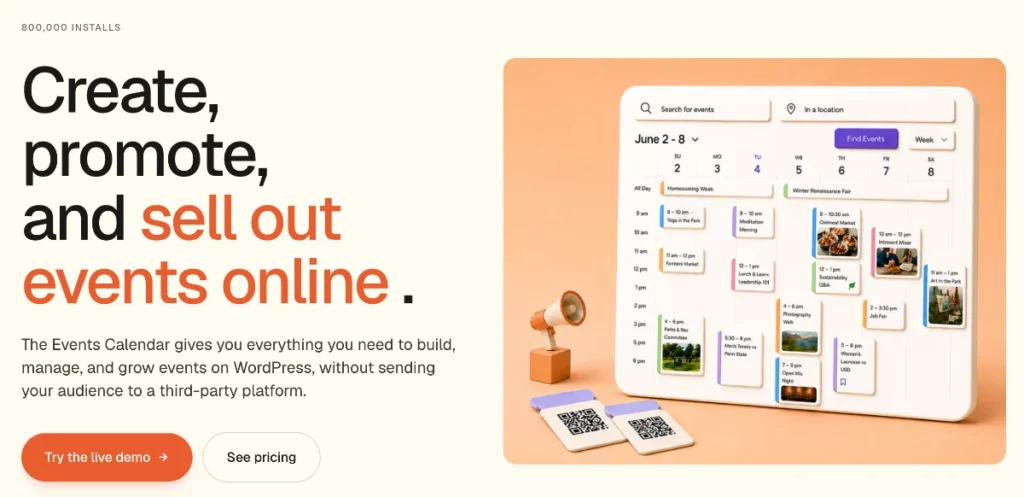
The Events Calendar, maintained by Nexcess/StellarWP under parent company Liquid Web, is the free core most event sites are built on: reusable venues and organizers, categories and tags, month/list/day calendar views, Google Maps, and Google Calendar/iCal export. Recurring events are not included free — that requires the paid Events Calendar Pro add-on, which also adds more calendar views, shortcodes, and custom event fields.
Eventful, covered below, builds on top of this event data rather than replacing it — it’s explicitly an add-on for The Events Calendar, so you’ll need the core plugin installed first.
Event Registration, RSVPs, and Ticketing
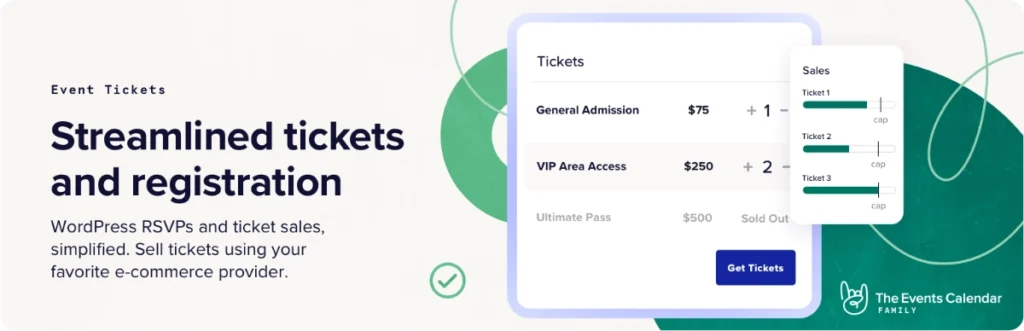
Publishing an event, accepting an RSVP, and selling a ticket are three different jobs — a calendar plugin alone doesn’t do the last two. Event Tickets, a free plugin that works with or without The Events Calendar, handles RSVPs and ticket sales, including real payments through its built-in Tickets Commerce via Stripe, PayPal, and Paystack.
The paid Event Tickets Plus add-on adds WooCommerce integration, custom registration fields, QR check-in, Apple Wallet passes, and Zoom integration for virtual events. Confirm exactly which features your event needs — capacity limits, refunds, and check-in generally live in this ticketing layer, not in the calendar plugin itself.
Forms and Attendee Inquiries
A dedicated form plugin still matters for speaker applications, sponsor and vendor inquiries, group-booking requests, accessibility requests, volunteer signups, and press passes — structured requests that need entry storage and confirmation emails, not a quick chat reply. Check spam protection, file-upload support, and consent handling, and test delivery periodically. ChatHelp, covered next, complements a form for quick questions rather than replacing it for anything that needs a record.
Eventful: Best for Showcasing and Organizing Events
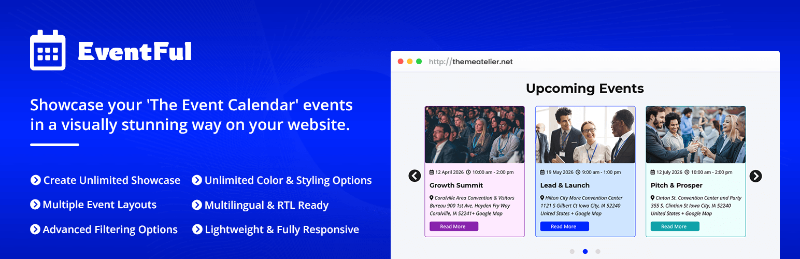
The Events Calendar stores event data correctly, but its default archive and category layouts don’t always match an organizer’s brand or make a large event catalog easy to browse. Eventful is an add-on for The Events Calendar that adds grid, carousel, slider, minimal-list, and vertical-timeline layouts, with category and tag filtering, sorting, and drag-and-drop display controls.
Best-fit organizers: venues with frequent events, conference organizers, community calendars, training providers, and agencies building event sites with several categories to browse. Verified free features: the five layouts above, keyword and taxonomy filtering, Gutenberg block and Elementor widget support, SEO schema markup, and full typography and color control. Pro adds: masonry and table layouts, advanced date-range and taxonomy filtering, and AJAX live search.
Limitations: Eventful requires The Events Calendar to function, doesn’t handle ticketing or payments, and doesn’t answer attendee questions — it’s a display layer, not a registration system. When it’s unnecessary: a small site with only two or three events a year may not need more than the default archive. Organizers already using The Events Calendar can start with Eventful free and compare the Pro layouts when they need a more customized showcase.
ChatHelp: Best for Fast Attendee Questions Through WhatsApp
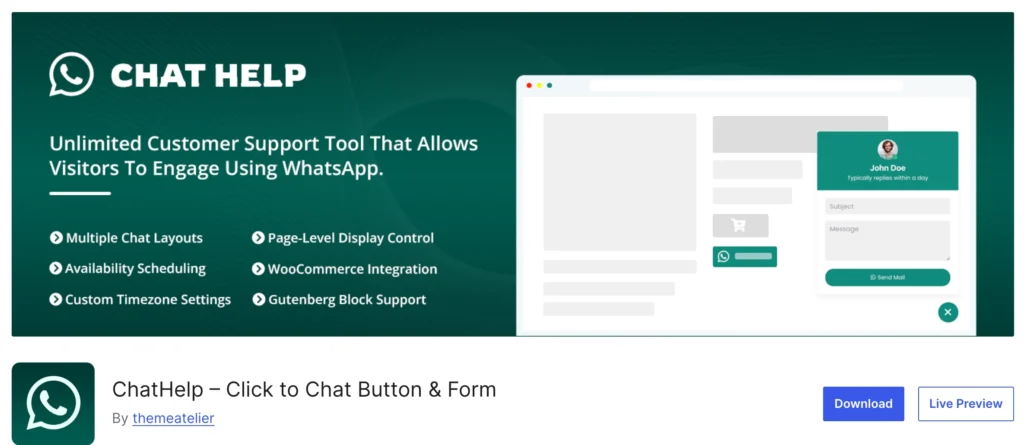
Potential attendees often have small, purchase-blocking questions the event page doesn’t answer: is parking available, is the venue accessible, can a ticket name be changed, what time should we actually arrive? ChatHelp adds a floating WhatsApp button so those questions become a quick conversation instead of an unanswered email.
Best-fit organizers: local events, workshops, conferences, and venues whose attendees already message on WhatsApp. Verified free features: multiple bubble layouts, dynamic pre-filled messages, page-level display targeting so the bubble can appear only on event pages, and a built-in analytics dashboard. Pro adds: multi-agent routing so ticket questions and sponsor inquiries reach different team members, plus webhook integration.
Limitations: it’s not a ticketing system, a registration database, or a shared help-desk inbox, and it shouldn’t be labeled “live” unless someone is actually available to respond. Event teams already fielding WhatsApp questions can start with the free version of ChatHelp and review Pro when they need more agents or targeting.
Greet Bubble: Best for a Personal Event Welcome
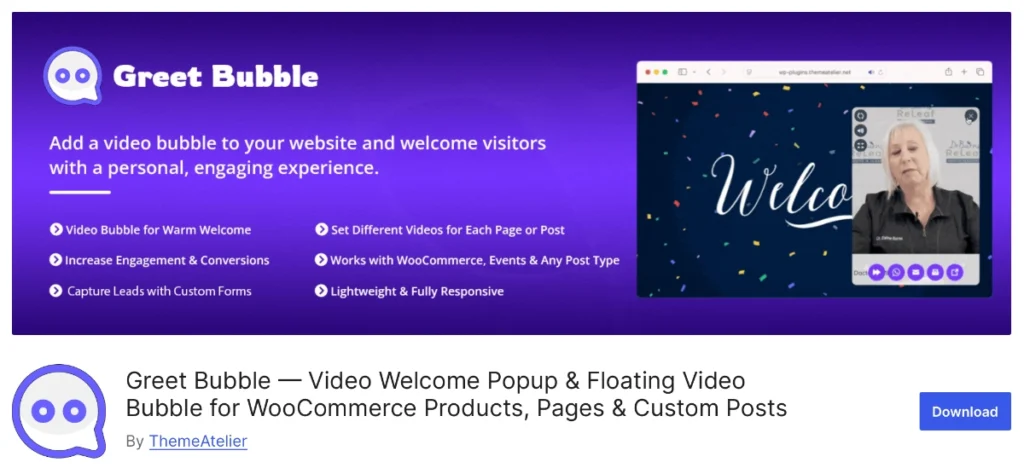
First-time visitors to an event page may not immediately grasp what the event is, who it’s for, or why it’s worth attending. Greet Bubble adds a floating video welcome bubble that can introduce a host, venue, or speaker, or point visitors toward tickets and schedules.
Best-fit organizers: conferences, workshops, coaching events, and high-consideration ticketed events with a genuine host or venue story to tell. Verified free features: multiple videos and buttons, CTA links to internal or external pages, contact-form connection, and event-specific video on individual pages. Keep the video brief, add captions, avoid disruptive autoplay audio, and make sure it never covers the ticket button.
Limitations: a weak or outdated event video can hurt trust more than help it, and it doesn’t replace a clear written event description. When it’s unnecessary: a simple community listing rarely needs a video introduction. Organizers with a strong host or venue story can try Greet Bubble free and explore Pro controls for page-specific videos.
Building the Complete Event Website Stack
Each tool plays a distinct role: The Events Calendar stores event data, Eventful improves how it’s displayed, Greet Bubble welcomes first-time visitors, ChatHelp answers remaining questions, a ticketing tool handles the transaction, and analytics, security, and backups protect the operation.
A realistic visit: a visitor browses the event archive, helped by Eventful’s layout; opens an event page, where Greet Bubble gives a brief introduction; checks the schedule and venue; asks ChatHelp one remaining question; registers or buys a ticket; and receives a confirmation while analytics, backups, and security work behind the scenes. Not every visitor needs to touch every tool.
Avoiding Floating-Widget Conflicts
ChatHelp and Greet Bubble can both use floating elements, so avoid placing them in the same corner, and never let either cover a ticket button, cookie notice, or accessibility widget. Establish a clear visual priority, test checkout and registration pages specifically, check small mobile screens, and use page-level targeting to hide optional widgets where they aren’t needed. Confirm compatibility with your specific theme rather than assuming it works everywhere.
Email Marketing and Attendee Follow-Up
Registration confirmations, reminders, venue changes, and post-event surveys need a clear sender, whether that’s your ticketing tool’s built-in notifications or a separate email/CRM system. Distinguish transactional messages, which attendees expect, from marketing emails, which need explicit consent. Check what your ticketing system already sends before adding another plugin that duplicates the same confirmation email.
SEO for Event Websites
Unique event titles and descriptions, accurate dates, venue details, and event schema markup all help search engines understand a listing — though no plugin guarantees rankings. Expired-event handling matters more here than on a typical site: outdated listings that stay indexed create broken pages, wrong dates, and a poor visitor experience, so decide whether past events redirect, archive, or stay live before publishing your first one.
Analytics and Conversion Tracking
Worth tracking: event-page views, ticket-button clicks, registration completions, WhatsApp-button clicks, and traffic sources by device. Analytics gives you the information to improve an underperforming event page — it doesn’t improve registrations on its own. Check regional consent requirements for any tracking you add; this isn’t legal advice, just a reminder to verify.
Performance, Security, and Backups
Optimize event images, avoid loading floating widgets on every page, and test how the event archive performs once it holds dozens of entries. Keep WordPress, themes, and plugins updated, protect admin accounts with strong passwords and two-factor authentication where possible, and use a reputable payment provider — no security plugin makes a site unhackable. Back up files and the database off-site, test the restore process, and back up more frequently during high-volume ticket sales, since a backup only helps if it actually restores.
Recommended Stack by Event Type
- Small local event: The Events Calendar, free Event Tickets for RSVPs, a contact form. Caution: skip Eventful until you have enough events to justify a showcase layout.
- Conference: The Events Calendar, Event Tickets Plus for paid registration, Eventful for the schedule, Greet Bubble for a speaker welcome. Caution: don’t add live chat if no one can staff it during the event.
- Venue with recurring events: The Events Calendar Pro for recurring dates, Eventful for browsing, ChatHelp for booking questions. Caution: verify recurring-event display in Eventful before relying on it.
- Workshop or training provider: The Events Calendar, Event Tickets, ChatHelp for scheduling questions. Caution: keep registration fields minimal for smaller cohorts.
- Festival: The Events Calendar Pro, Event Tickets Plus, Eventful, Greet Bubble for a venue tour. Caution: test mobile performance heavily given day-of traffic spikes.
- Nonprofit or community calendar: The Events Calendar, free RSVPs, a simple contact form. Caution: avoid paid ticketing tools you don’t actually need.
- Virtual event: The Events Calendar, Event Tickets Plus for Zoom integration, ChatHelp for last-minute access questions. Caution: confirm the Zoom integration matches your specific webinar platform.
- Event agency managing several clients: The full stack per client site, standardized where possible. Caution: avoid installing every optional plugin on every client site by default.
These are starting points, not universal requirements — match the stack to what your event actually needs.
Free vs. Paid Event Plugins
Free versions are usually enough for a small number of events, simple listings, free RSVPs, and one communication channel. Paid tools earn their cost with recurring events, advanced layouts, ticket sales at scale, multiple agents, custom registration fields, or integrations like WooCommerce and Zoom that save real setup time. Paid isn’t automatically better — it’s worth it when a specific limitation is actually blocking your event.
Event Website Plugin Checklist
- Define the event workflow: publish, register, sell tickets, or all three
- Confirm plugin dependencies, like Eventful requiring The Events Calendar
- Avoid duplicate calendar, form, caching, or SEO plugins
- Verify payment gateway compatibility before selling tickets
- Test mobile layouts, search, and filtering
- Test registration emails and WhatsApp or form inquiries
- Confirm timezone behavior for your events
- Back up the site and test on staging before major changes
- Decide how expired events will be handled
- Measure performance before and after installing new plugins
Final Recommendation
Start with a reliable core event-management system, add registration or ticketing if the event needs it, then improve presentation with Eventful, add ChatHelp when attendees already use WhatsApp, and add Greet Bubble when a personal video would genuinely strengthen the offer. Layer on analytics, SEO, performance, backups, and security, and remove anything that isn’t solving a specific problem for your event.
Try Eventful free if The Events Calendar needs better presentation. Try ChatHelp free if attendees frequently ask questions through WhatsApp. Try Greet Bubble free if a personal event introduction would help visitors. Or browse the full ThemeAtelier plugin catalog for additional WordPress tools.
FAQ – WordPress Plugins for Event Websites
What plugins does a WordPress event website need?
Most event sites need a core event-management plugin like The Events Calendar, a registration or ticketing tool, attendee communication, SEO, analytics, performance, and backups. Beyond that foundation, add presentation or engagement tools like Eventful, ChatHelp, or Greet Bubble based on your specific event’s needs.
Do I need The Events Calendar for Eventful to work?
Yes. Eventful is explicitly built as an add-on for The Events Calendar and requires it to function — it improves how existing event data is displayed rather than managing events on its own.
Does Eventful replace The Events Calendar?
No. Eventful is a presentation layer that adds grid, carousel, and other layouts on top of events created in The Events Calendar. It doesn’t store event data, handle ticketing, or process payments on its own.
Can I sell event tickets through WordPress?
Yes. The free Event Tickets plugin supports RSVPs and paid ticket sales through its built-in Tickets Commerce, including Stripe, PayPal, and Paystack. The paid Event Tickets Plus add-on adds WooCommerce integration, custom fields, and QR check-in for larger or more complex events.
Can attendees ask questions before buying tickets?
Yes, through a contact form for detailed requests or a WhatsApp plugin like ChatHelp for quick questions about parking, accessibility, or timing. Neither replaces the other — forms suit requests needing a record, while chat suits fast, purchase-blocking questions.
Can ChatHelp appear only on event pages?
Yes, ChatHelp’s page-level display targeting lets you show the WhatsApp bubble only on selected event pages rather than site-wide, which helps avoid clutter on unrelated pages like a blog or general contact page.
Is a video welcome useful on an event website?
It can be, for events with a genuine host, venue, or speaker story worth introducing. A weak or outdated video can hurt trust more than help it, so keep it current, brief, and captioned, and make sure it never covers the ticket button.
Can Eventful, ChatHelp, and Greet Bubble run together?
Yes, they solve different problems and can work well together, but test the combination for overlapping floating buttons, mobile layout, and page speed. Make sure neither ChatHelp nor Greet Bubble ever covers a ticket button or checkout control.
How should expired event pages be handled?
Decide in advance whether past events redirect, move to an archive, or stay live with a clear “past event” label. Leaving outdated listings indexed without handling them creates broken-feeling pages and can confuse both search engines and visitors.
Which plugins are best for recurring events?
Recurring events require the paid Events Calendar Pro add-on, since the free version doesn’t include recurring scheduling. Confirm how Eventful’s layouts display recurring series before relying on it for a venue with a regular weekly or monthly schedule.