
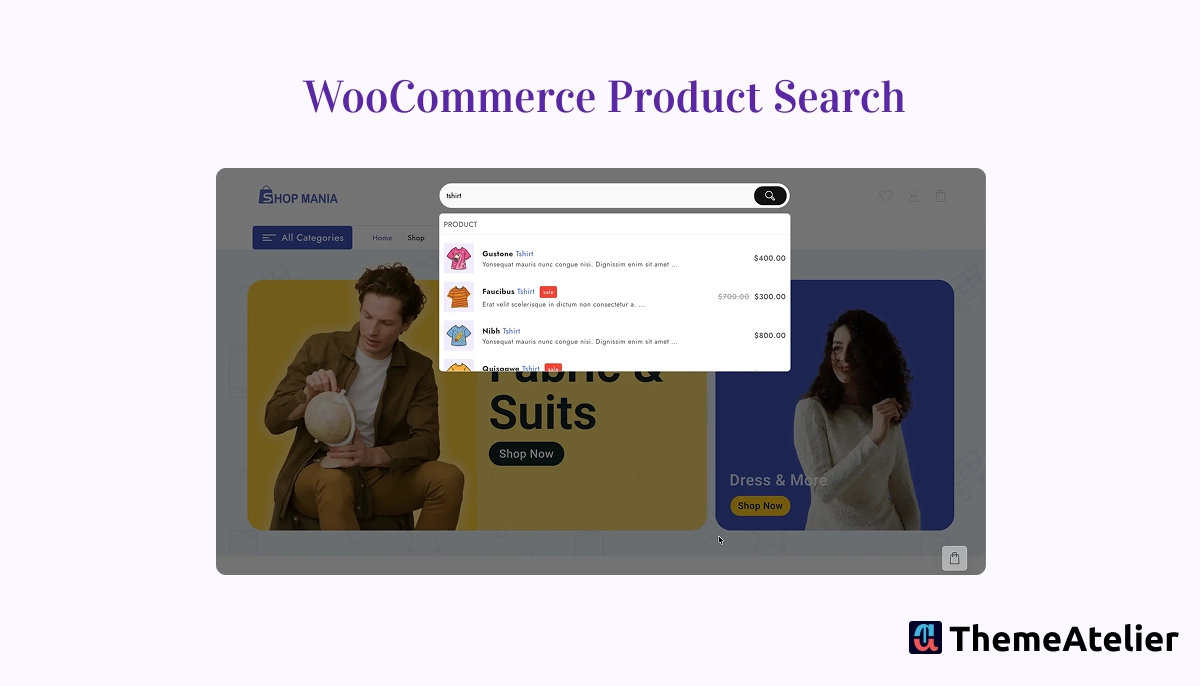

WooCommerce product search is one of the most important features of a successful online store. Without a fast and accurate search experience, customers struggle to find products, which often leads to frustration and lost sales. In this beginner-friendly guide, you’ll learn how to add an advanced WooCommerce product search system that improves usability, saves time, and increases conversions. I don’t think a WooCommerce website is complete without product search. Having a search functionality on your website is like saving a lot of time for users to find a product.
In this blog, I will guide you through the full procedure of adding product search in WooCommerce. With the help of Search, users can instantly search for a product, post, or page. It ultimately helps in increasing the users’ convenience.
First, let’s see what the Advance Product Search is that we will be using in this blog.
Table of Contents
What is Advanced WooCommerce Product Search?
Advance WooCommerce Product Search is a WordPress WooCommerce plugin designed to insert the functionality of searching.
This enables users to search specifically for a product, post, or page. It means even if you do not have an online store, this plugin can help you.
Not only this, but this is fast and smooth across all device whether it is a desktop, laptop, tablet, or mobile. It fits perfectly on any screen size. Moreover, it is customizable, so you can customize and match it with your brand.
If you’re looking to enhance your store beyond search functionality, exploring the best WooCommerce plugins can help you improve performance, user experience, and overall store management.
How to add WooCommerce Product Search?
Let’s see how you can add the Product Search to your website.
Step 1 – Log in to your website dashboard
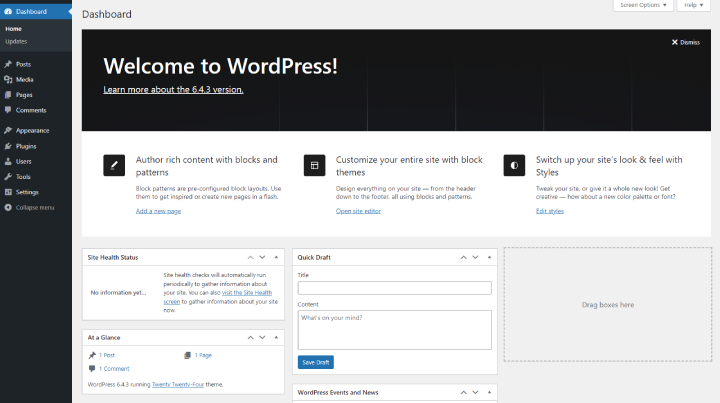
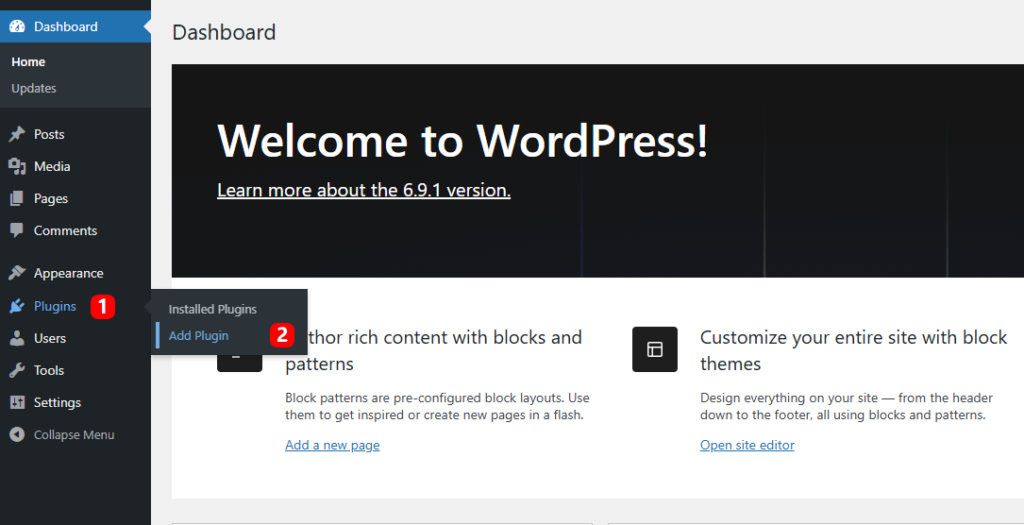
Step 2 – Go to Plugins and click on Add Plugin
Step 3 – Go to the search box and search for Advance WordPress Search
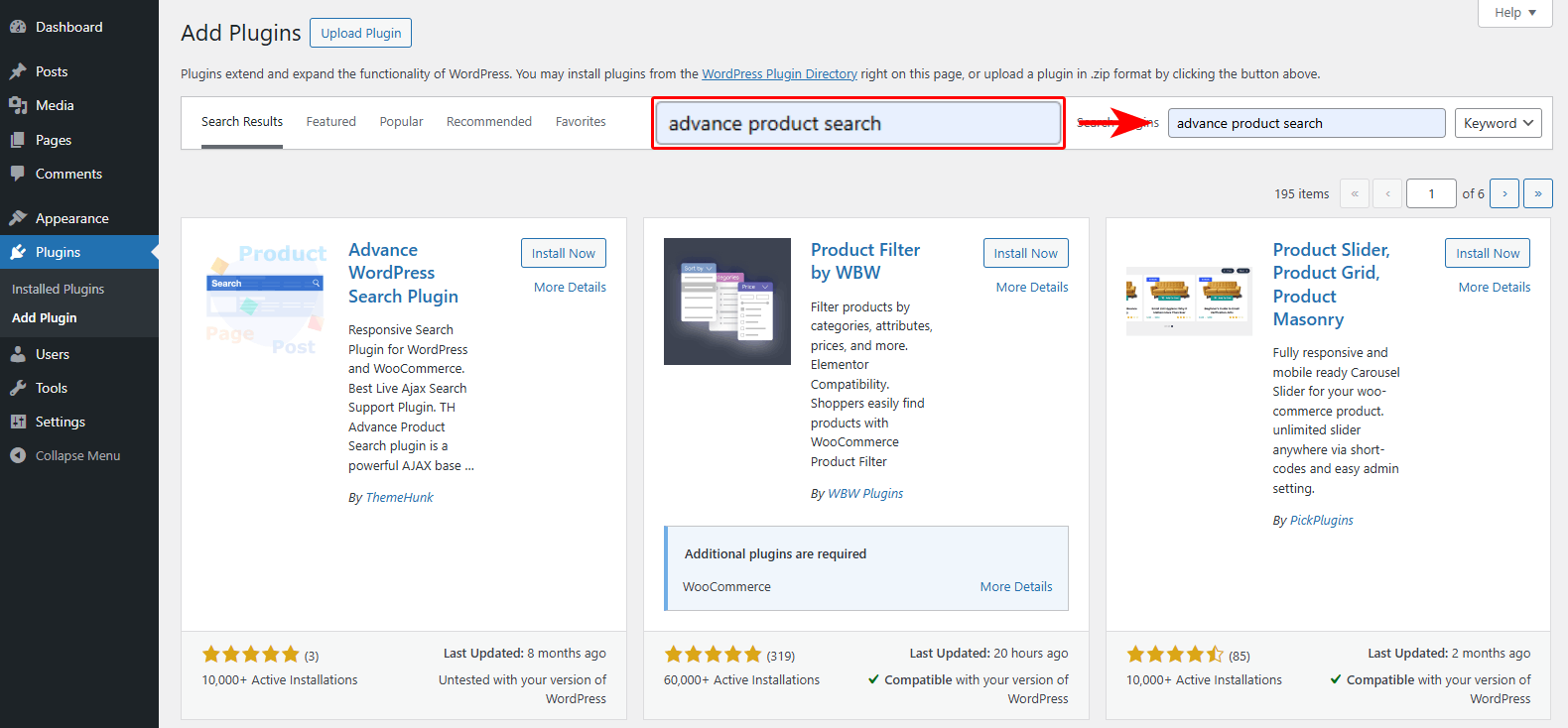
Step 4 – Install and Activate the plugin
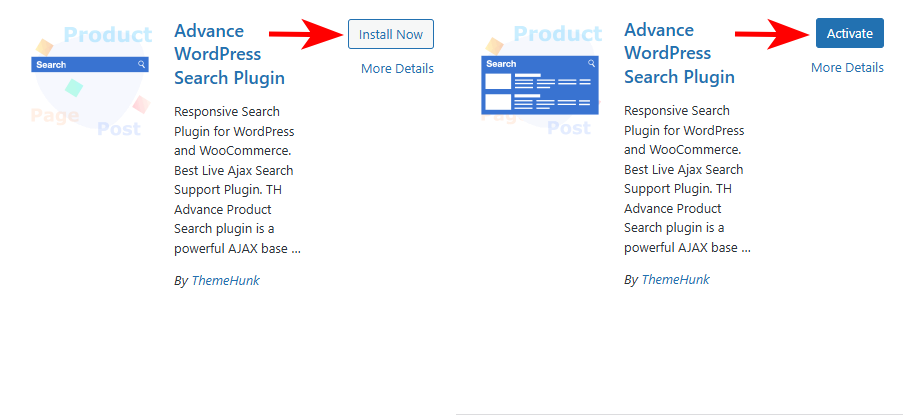
Once the plugin is activated, you will see the ThemeHunk menu in your dashboard. And the search will automatically come to your header.
Exploring the Advance Product Search
Navigate to ThemeHunk and click on Advance Search. You will see the Advance search dashboard.
Integration
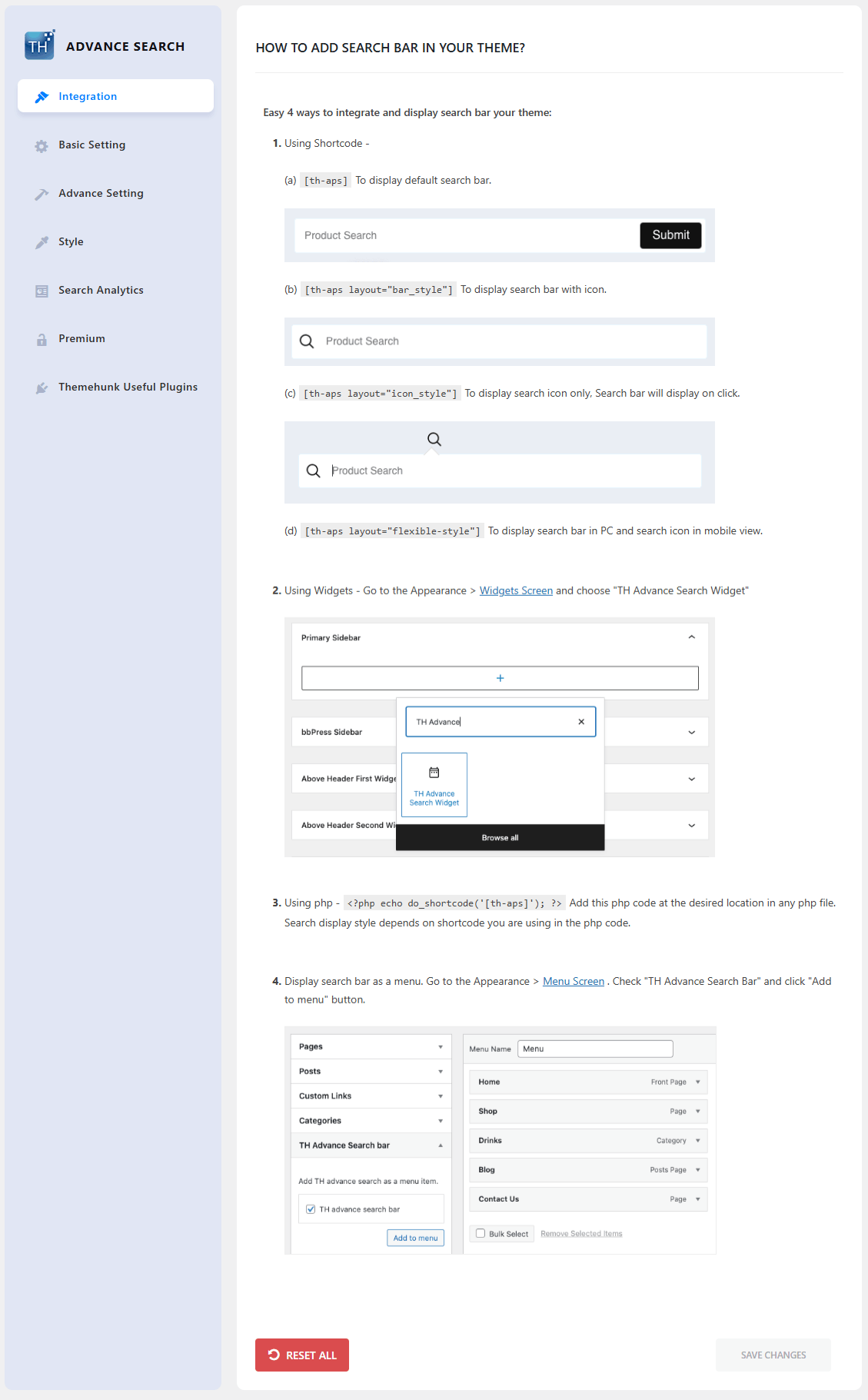
Here you will see the ways to integrate the Product Search into your website. There are 4 ways
- Shortcode – You are given some shortcodes. You can copy and paste shortcodes as per your needs.
- Widget – If you want to integrate the search functionality using a widget, that option is also given.
- PHP – You can paste the given PHP code on th desired location in any PHP file.
- Menu – Some website owners like to display the “Search” in menu, this option is for them.
Basic Settings
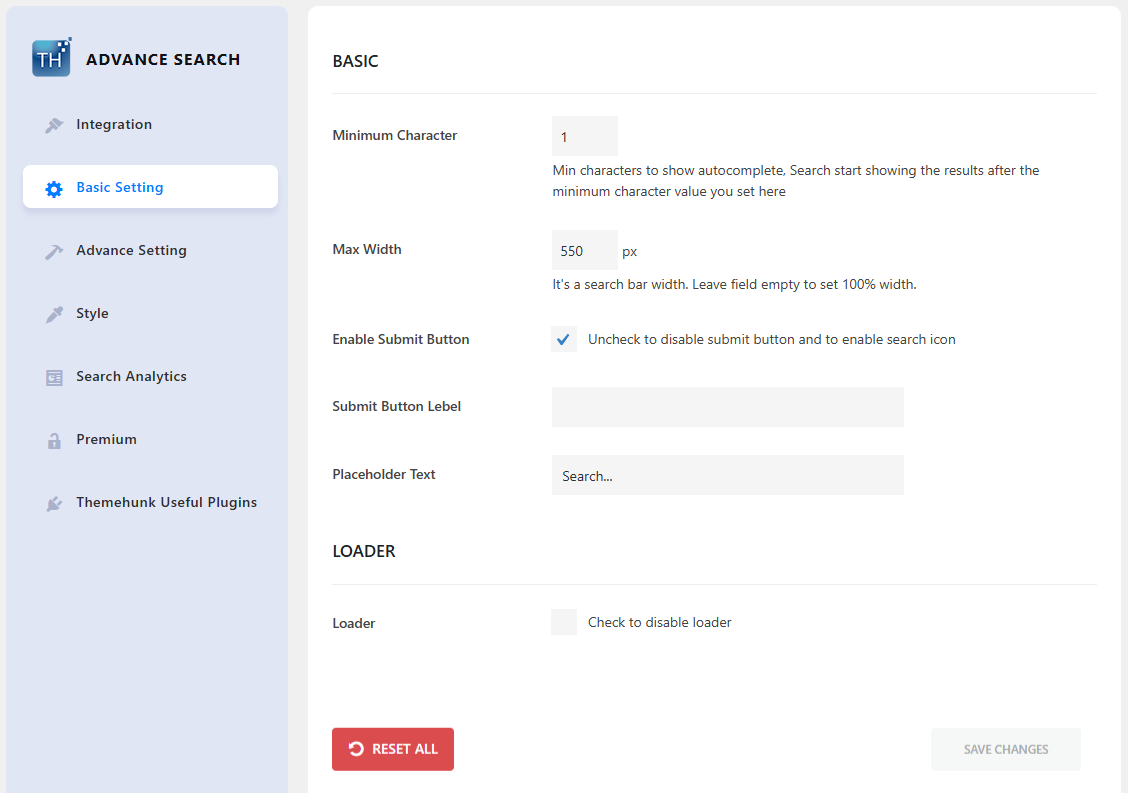
Basic
- Minimum Character – This is the minimum character user needs to enter for autocomplete. After the minimum character(s) are entered by the user, the related result will appear.
- Max Width – Using this, you can set the max width of the search box. You can adjust the width as per your site.
- Enable Submit Button – You can enable or disable the submit button using this box.
- Placeholder Text – You can change the placeholder text from here. This is the text appear in the background of the search box.
Loader
- Loader – If you want to hide the loader animation that appear during showing the search result, you can enable or disable it from here.
Advance Settings
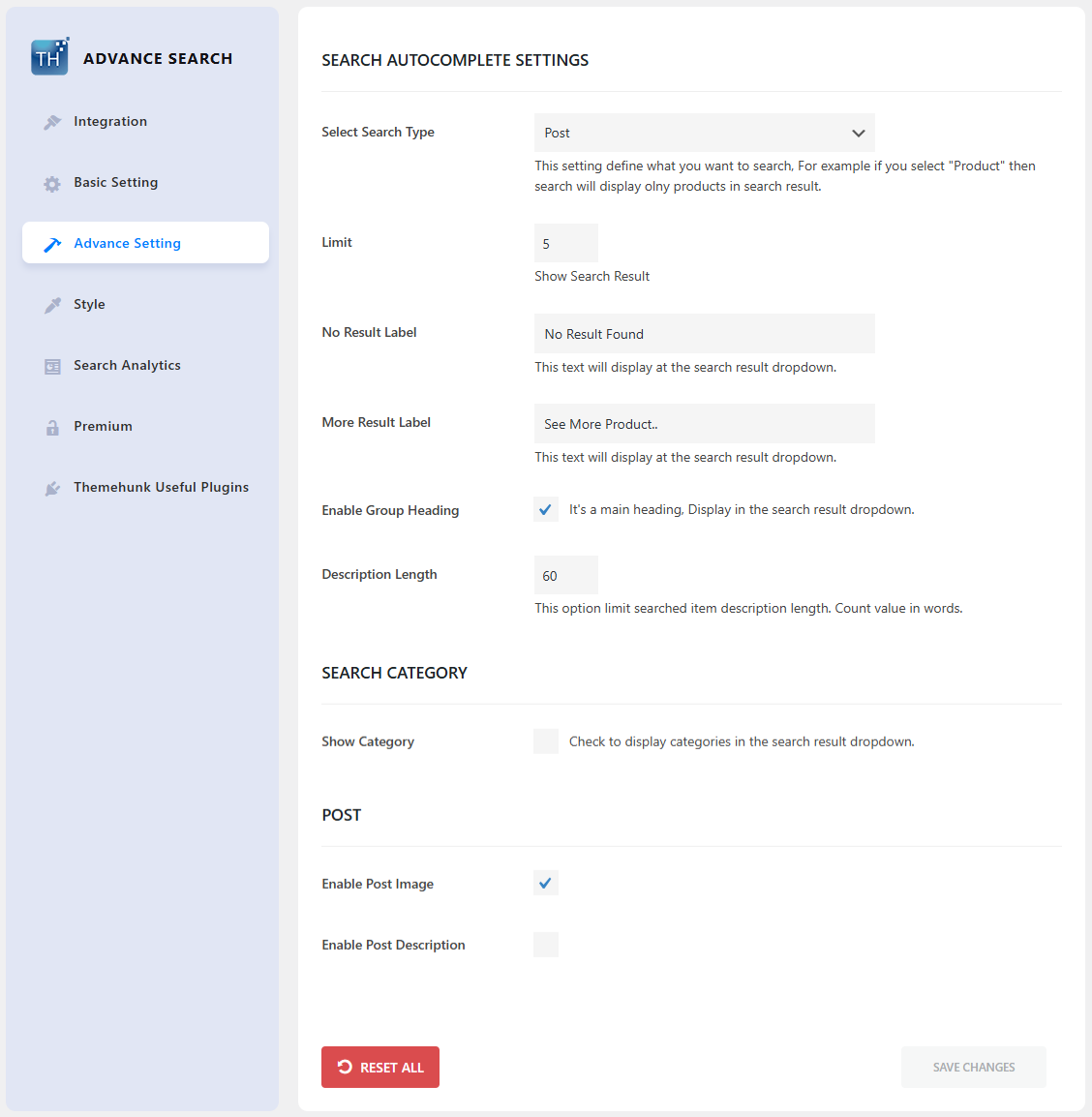
Search Autocomplete Settings
- Select Search Type – You get 3 options here, Product, Page, and Post. You need to select what you want to show search.
- Limit – This number shows the maximum number of results to appear after the search.
- No Result Label – Enter here what you want to display if no result is found.
- More Result Label – This is the label text of the button. This button shows more searches. For example, if there is a limit of max 5 searches, then this button will show more searches if available.
- Enable Group Heading – Group heading is the heading of the group you select for search. For example, if you selected Products, then the Product heading will be displayed, the same for posts and pages.
- Description Length – You can set the length of the description in words that will be displayed in the search result.
Search Category
- Show Category – If you want to show the category of the products also in the search result, enable this option.
- Enable Category Image – If you want to show the category images also, then enable this option.
Product
- Enable Product Image – Enable this if you want to show the image of the product in the search result.
- Enable Product price – Enable this if you want to show the price of the product in the search result.
- Enable Product Description – Enable this if you want to show the description of the product in the search result
- Enable Product SKU – Enable this if you want to show the SKU of the product in the search result
Exclude Product – If you want to exclude any product from appearing in search, then enter the SKU of that product. You can enter multiple products’ SKUs here.
Style
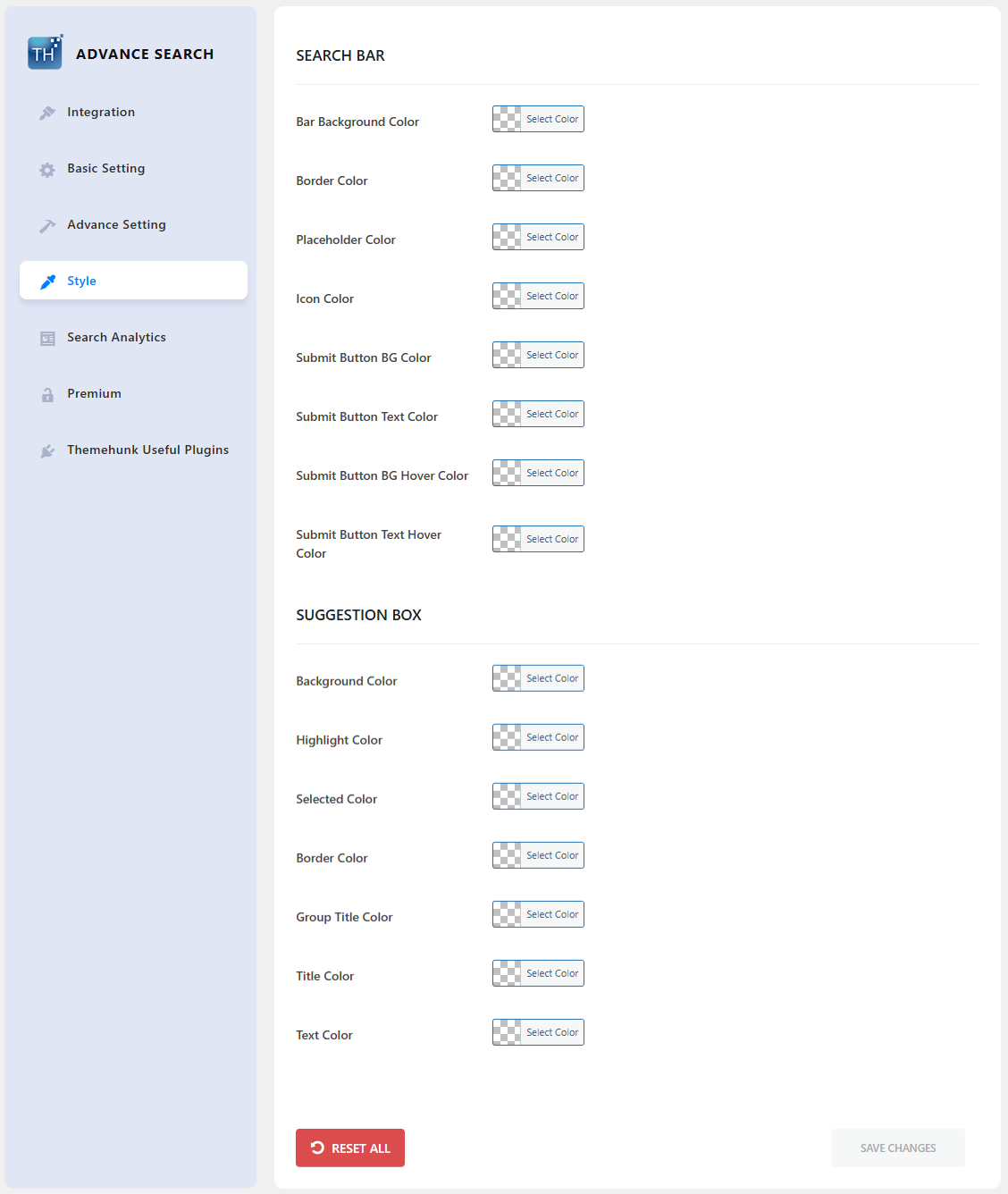
The style setting is given to stylize the search box with colors. A separate color option is given for each component of the search box.
From the Search bar to the Suggestion box and from background to text, you have the liberty to stylize.
Search Analytics
This is a kind of revolutionary feature integrated with the Search. This feature allows you to integrate Google Analytics so you can get the analytics of searches users searched.
With the help of the analytics, you can make a proper strategy and then implement to increase the conversion rate.
You will know what users are searching for mostly. And then you can do suitable changes to your store.
Premium Features
Some of the notable premium features are
- Voice Search
- Custom Loader
- Large Search Scope
- Fuzzzyy String & Synonym
- Highlight in Product (Sale, Featured, etc)
- Advance Customization
FAQ
Can I add a WooCommerce product search bar to a specific page using a shortcode?
Yes, using shortcode, you can add a Search bar to a specific page.
Do I need to write code to customize the search bar?
No, coding is not required to customize the search bar.
Does adding the advance product search plugin slow down the WooCommerce site performance?
No, it doesn’t affect your website speed. And I should say it is a very fast plugin.
How can I ensure my new WooCommerce product search is mobile-friendly and easy to use on small screens?
You don’t have to worry about this. The advance Search plugin is responsive to all devices that users use to access the device, including mobile devices. So the mobile users will also get the same experience as desktop users.
How do I track what my customers are searching for in WooCommerce to understand product demand?
You can integrate Google Analytics with your search plugin. This functionality is provided by Advance search, so you can understand product demand and put your next step properly.
Conclusion
So we saw how you can add product search into a woocommerce webiste. Helping your customers with navigation is not remained headache.
You read about the exciting features it comes with. These features are enough to upgrade your website and make it a professional store. It is fully integrated with Woocommerce so you will get a seamless experience with this plugin.
Adding the Product Search to your woocommerce store is more than an upgrade. It is very critical in optimizing the conversion rate.
Remember, a great search experience does more than just help users find products. It reduces friction, builds customer confidence, and directly translates to higher conversion rates.
Upgrade your search experience today, because your customers can’t buy what they can’t find.